Table8

Table8 · Venue & staff guide

User Manual

A simple guide to set up your restaurant or hotel, build the menu, print QR codes, and take orders.

Version
v1.0
Updated
October 19, 2026
Chapters
23
Reading
1 / 23
01

Welcome

Table8 helps restaurants, bars, cafés, pubs, and hotels take orders from a phone. A guest scans the code on the table (or in the room), opens your menu, and sends the order. Your team can also take orders on a tablet. The kitchen screen updates as orders come in.

Owner
Set up the venue and menu
Staff
Take orders and manage tables
Kitchen
See new tickets as they arrive
Guest
Scan, order, follow progress

If you own or manage the venue

Open Get Started, create your venue, choose a plan, then add categories, dishes, tables, and QR codes from the dashboard.

If you work service or kitchen

Sign in with the account your manager created. You will see staff tools or the kitchen screen — you do not need the owner dashboard.
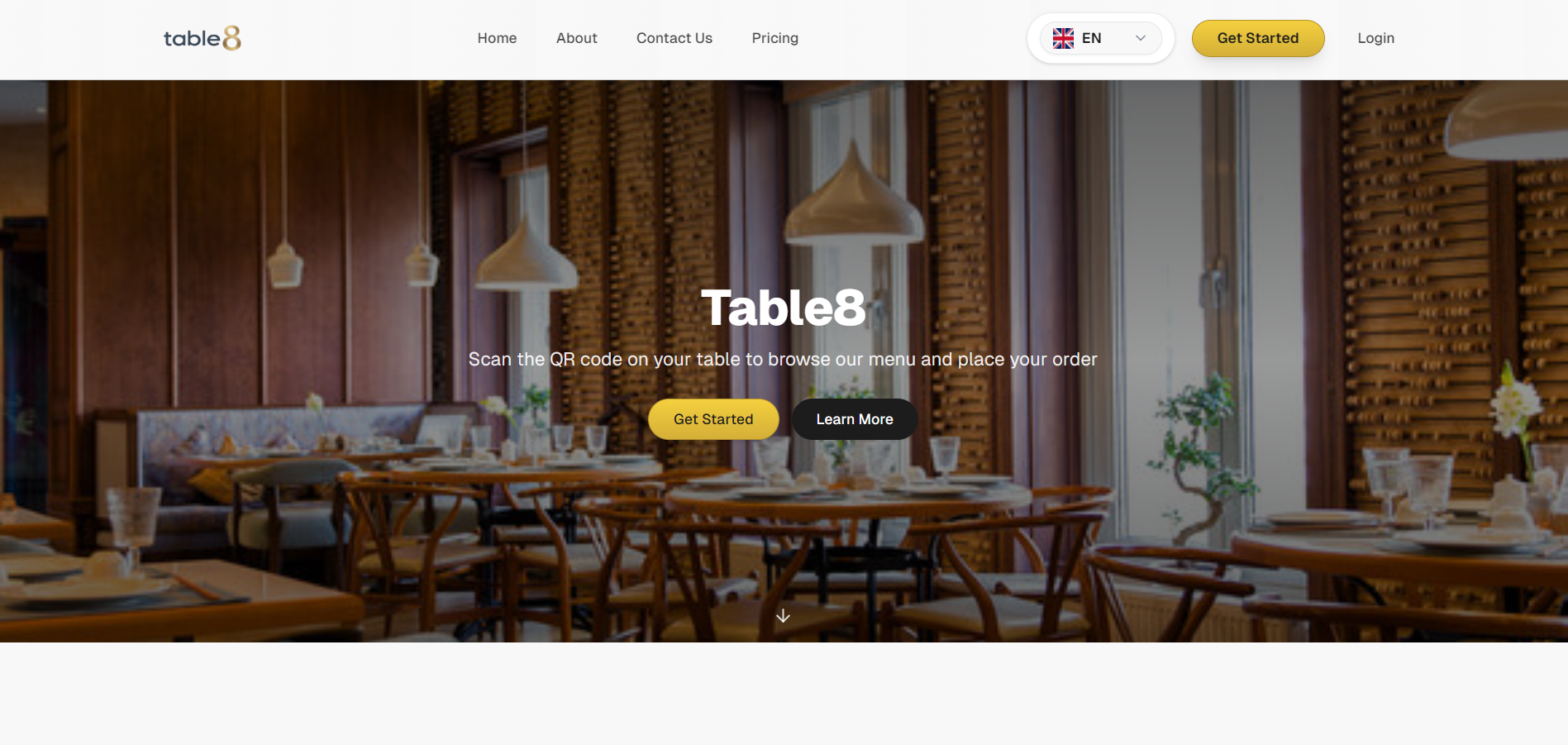
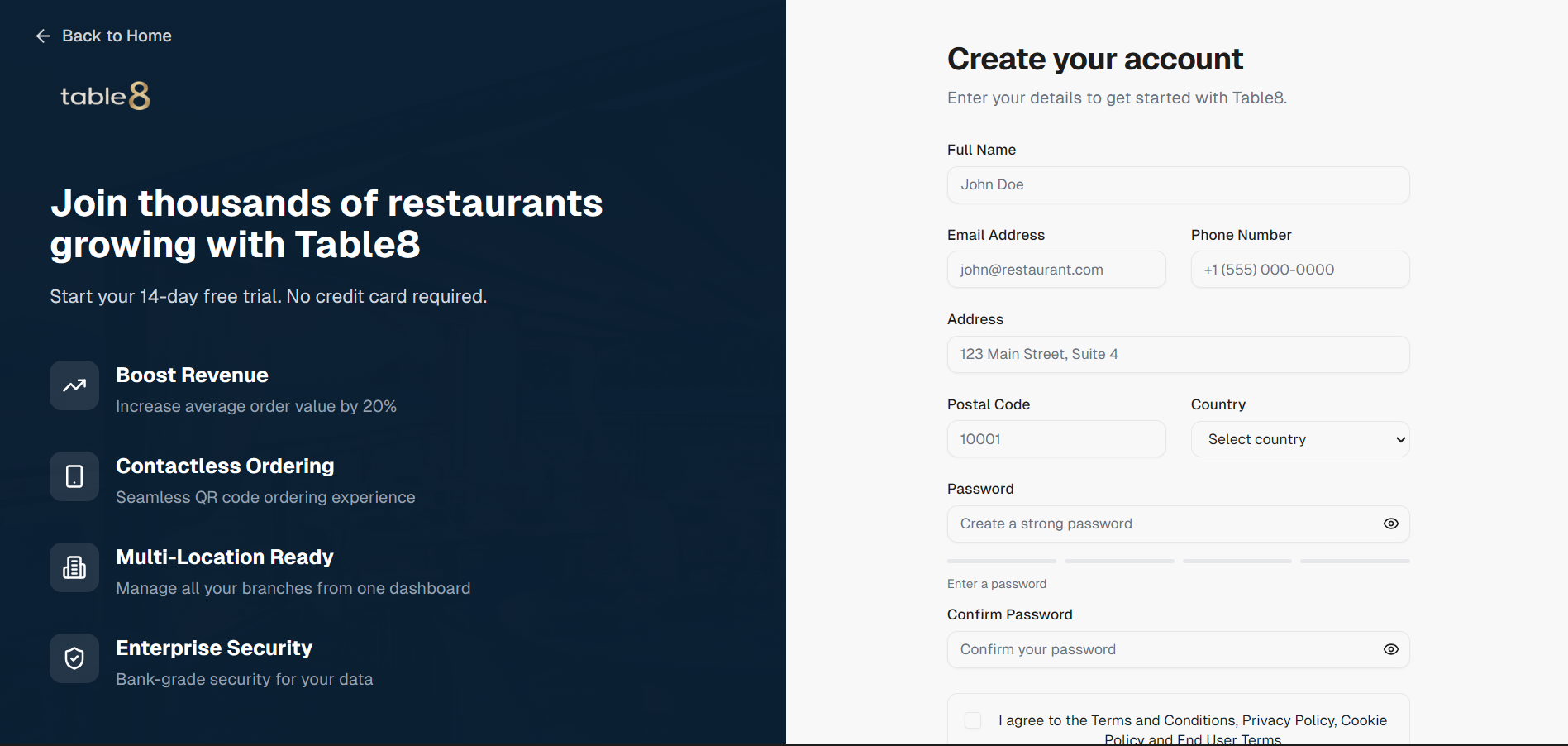
Table8 home page
Table8 home page, with Get Started and sign in.
02

Create account & venue

You create two things: your own login, then your restaurant or hotel. Start at Get Started.

Your login

  1. 1Enter your full name, email, phone, street address, postal code, and country.
  2. 2Choose a password of at least 8 characters, with one capital letter and one number. Type it twice.
  3. 3Accept the terms and submit. Table8 signs you in and takes you to create the venue.
Get Started registration form
Get Started: your details and password.

Your venue

On Create venue fill in the business details. Guests will see this on the menu after they scan a QR code.

  • Name, email, phone, and an optional website.
  • Type: restaurant, bar, café, pub, or hotel. Hotels can add extra menus such as the restaurant, room service, and the pool bar.
  • Address: street, city, zip, country, and optional state.
  • Tax: tax ID type, registration number, and where you are registered.
  • Hotels only: star rating (3–5), number of rooms, how many restaurants / bars / pool bars you have, and whether you use the kitchen screen.
Create venue form
Create venue: type, address, and tax details.
03

Sign in

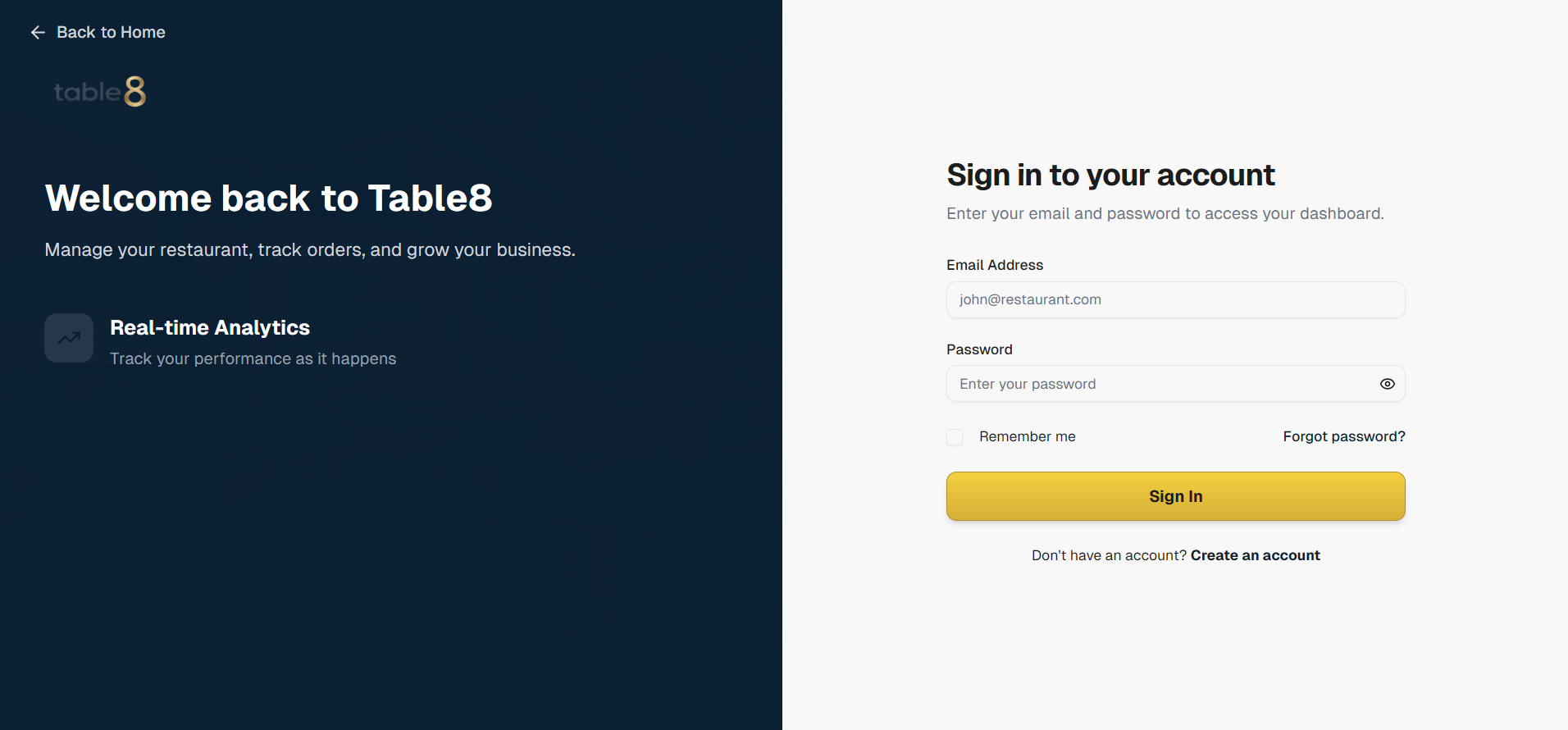
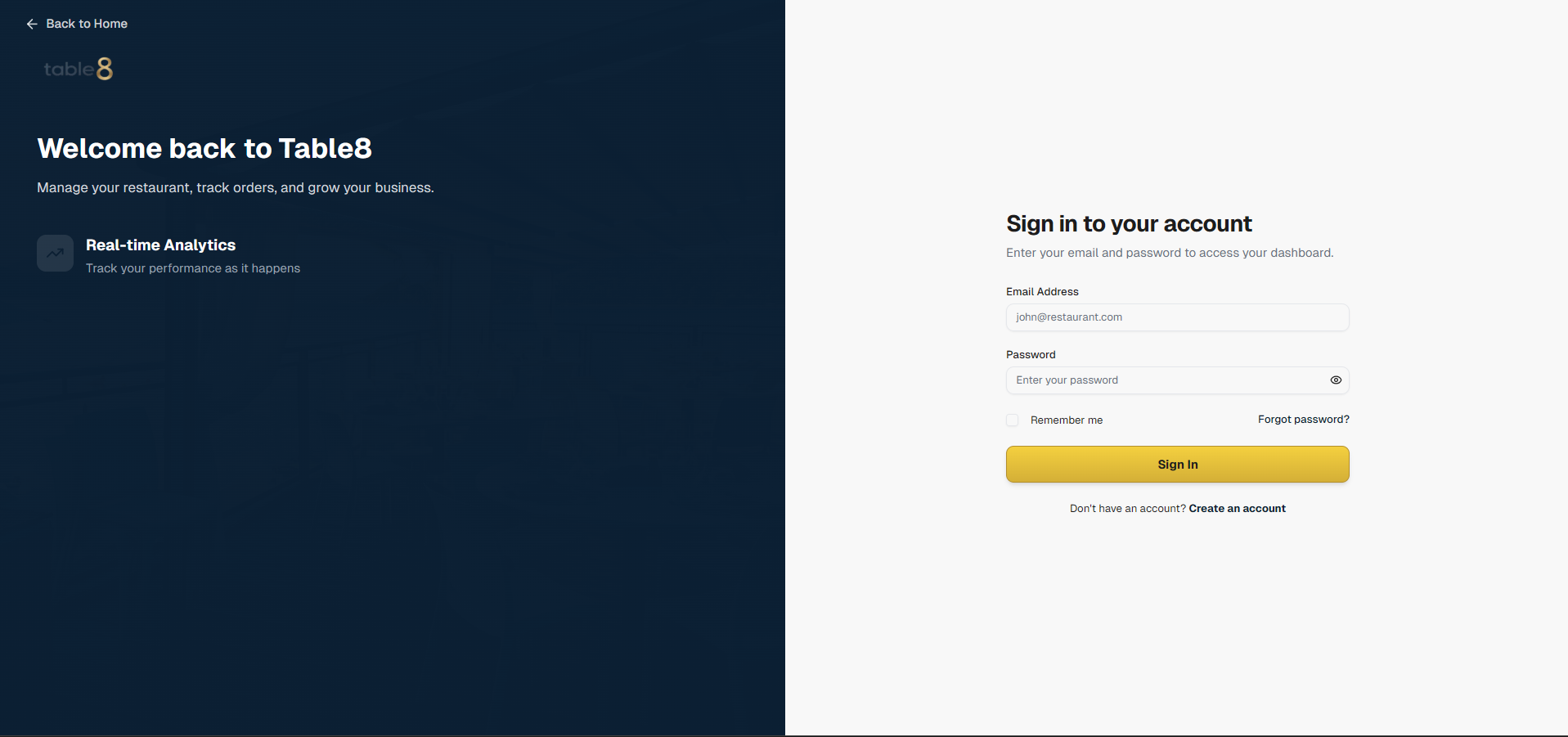
After you register, open Login with your email and password. Staff use the same page with the account you create for them.

Login page
Sign-in screen for owners and staff.
05

Venue profile

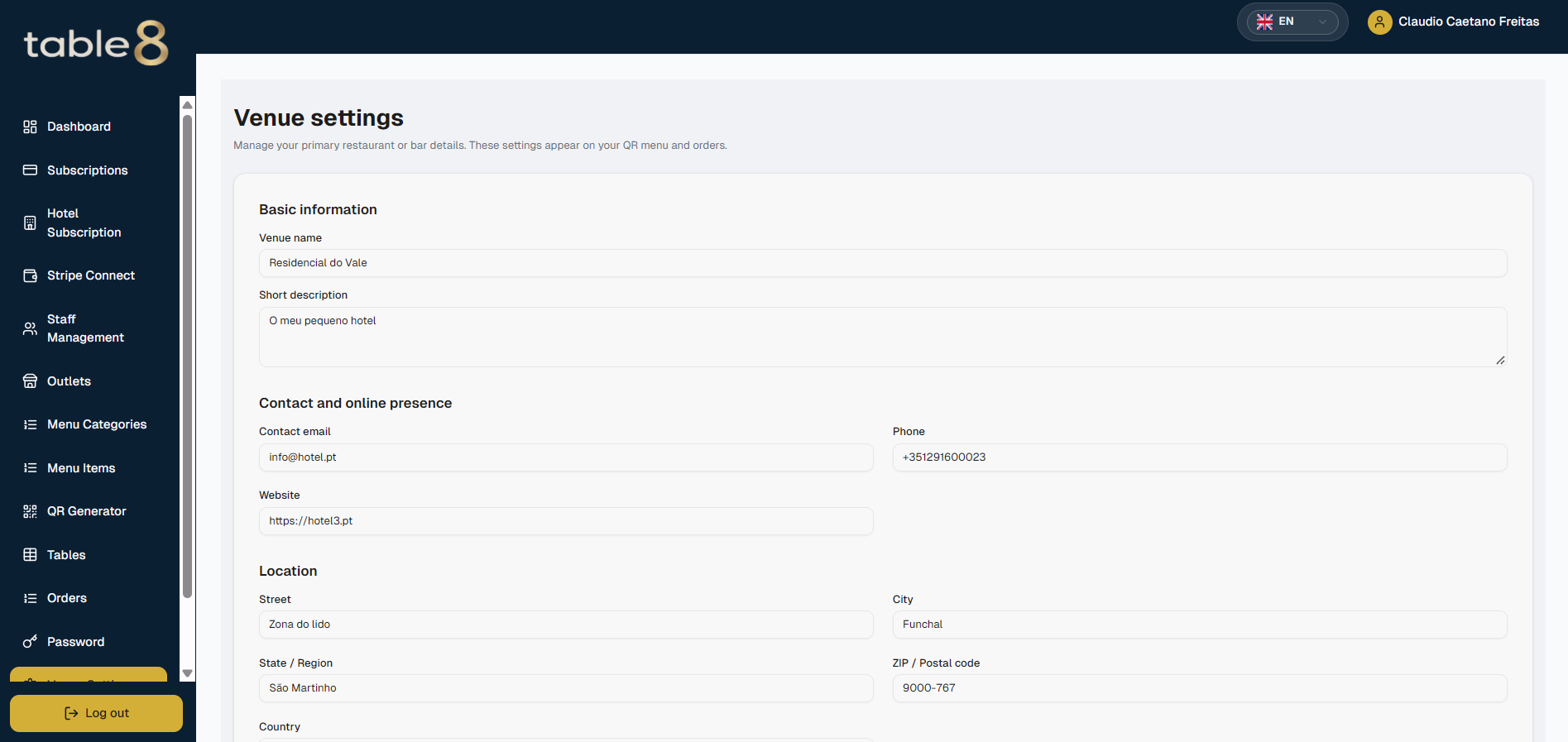
Open Venue Settings to keep your public details up to date: name, description, logo, cover photo, contact, address, and tax. Guests see the name, description, and (for hotels) the outlet on the menu header.

Venue settings page
Venue settings: what guests see on the menu.
06

Opening hours

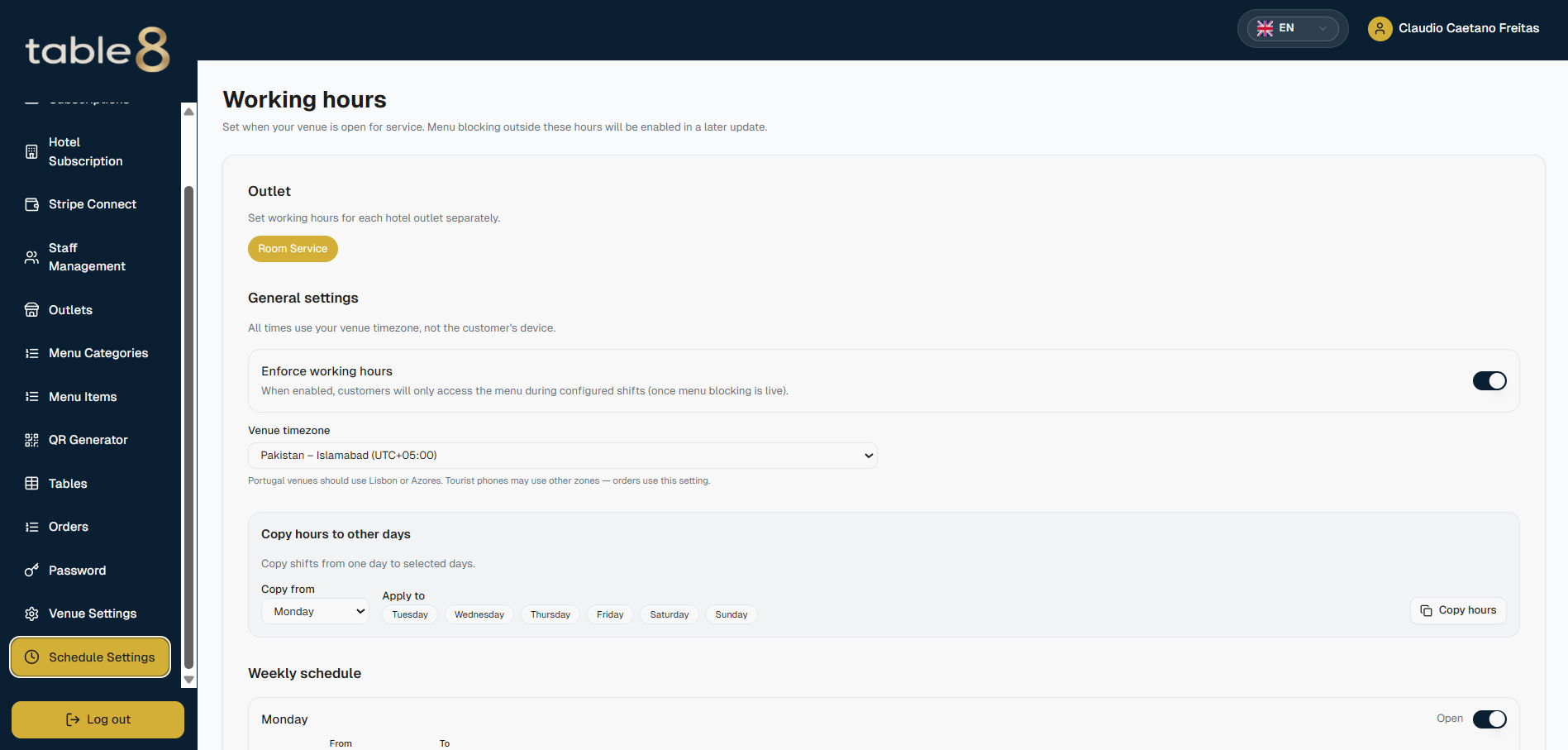
Open Schedule Settings. Set when you are open each day. The guest menu uses these hours. Outside them, guests see a closed screen instead of the menu.

  1. 1Add at least one open period for every day you serve.
  2. 2If you close between lunch and dinner, add two periods for that day.
  3. 3Save. A guest who scans during closed hours cannot place an order.
Schedule settings
Opening hours for the public menu.
07

Subscribe to a plan

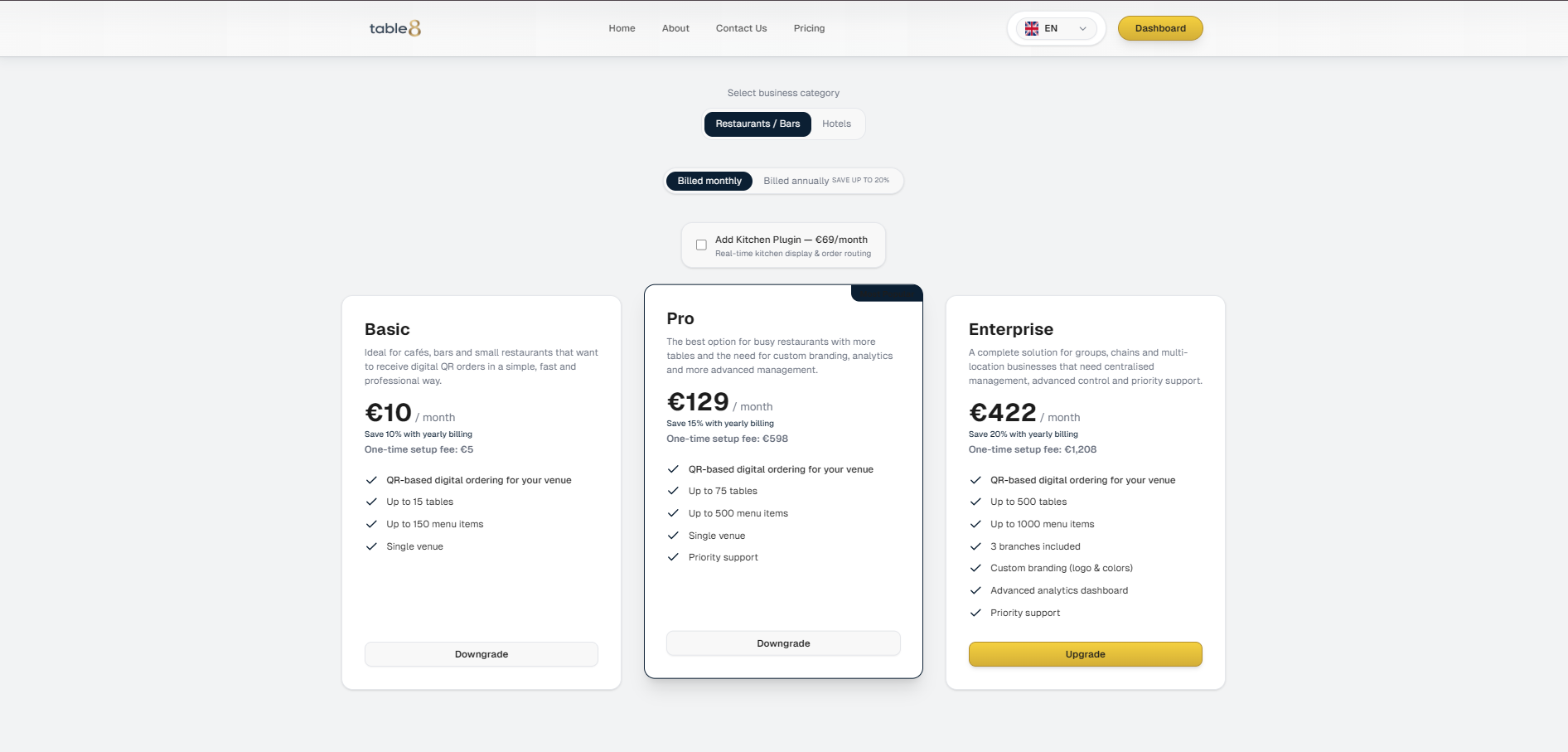
You need an active paid plan before guests can order. Owners start from Pricing or Subscriptions.

Restaurants, bars, cafés, pubs

  1. 1Choose monthly or yearly billing. Yearly usually costs less overall.
  2. 2Pay on the secure checkout page. The default currency is euros.
  3. 3After payment you return to a confirmation screen, then the dashboard.

Hotels

Use Hotel Subscription. The price follows your star rating, number of rooms, outlets, and whether the kitchen screen is included. Review the breakdown, then subscribe.

Pricing or hotel subscription breakdown
Choose a plan before you pay.
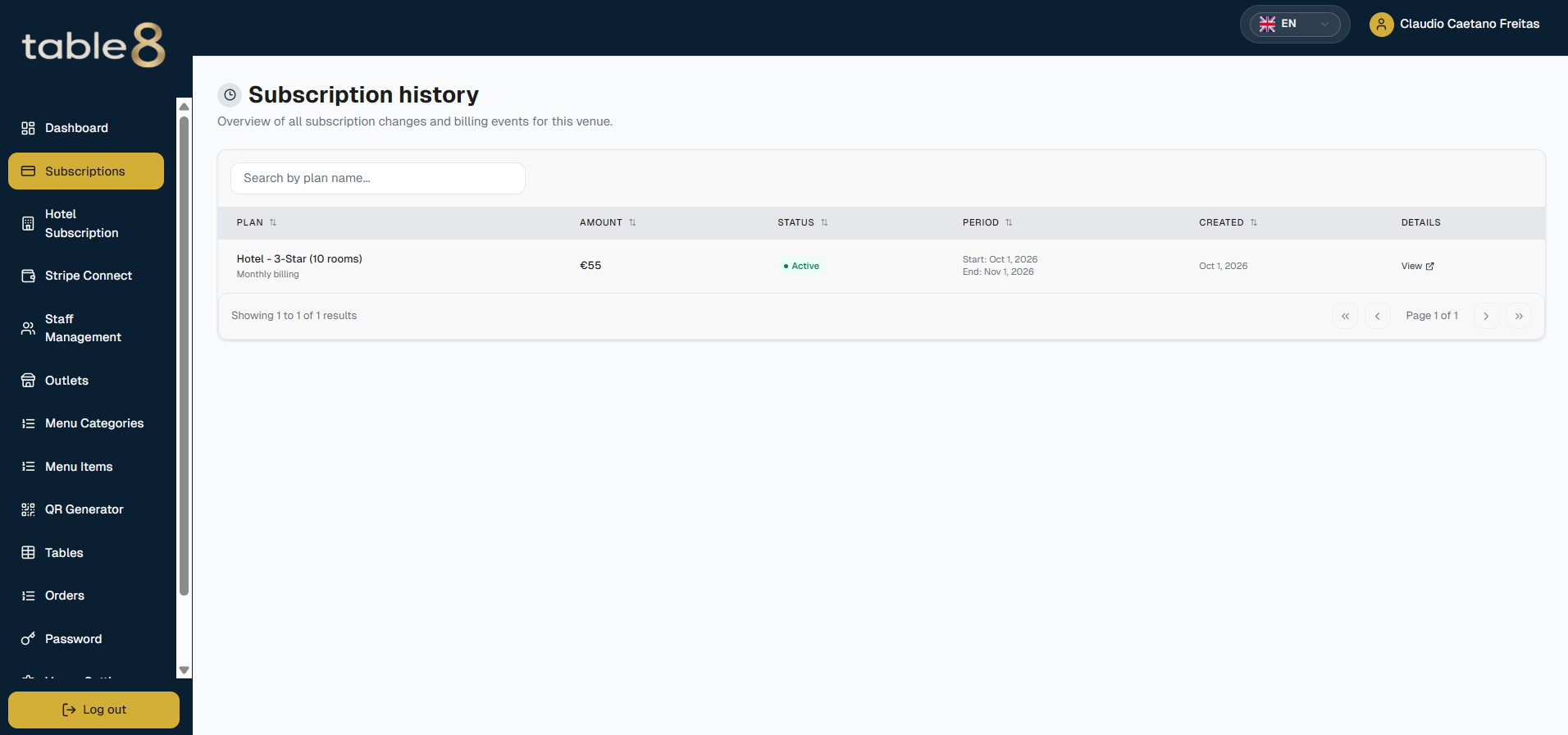
Subscription history
Your plan after you have subscribed.
  • Manage billing opens a page where you can see invoices, update the card, or cancel.
  • Renew is for venues whose plan is cancelled, expired, or unpaid. Owners and venue admins can start renewal.
  • If you cancel, you keep access until the current period ends. After that, the lock screen appears.
08

Receive card payments

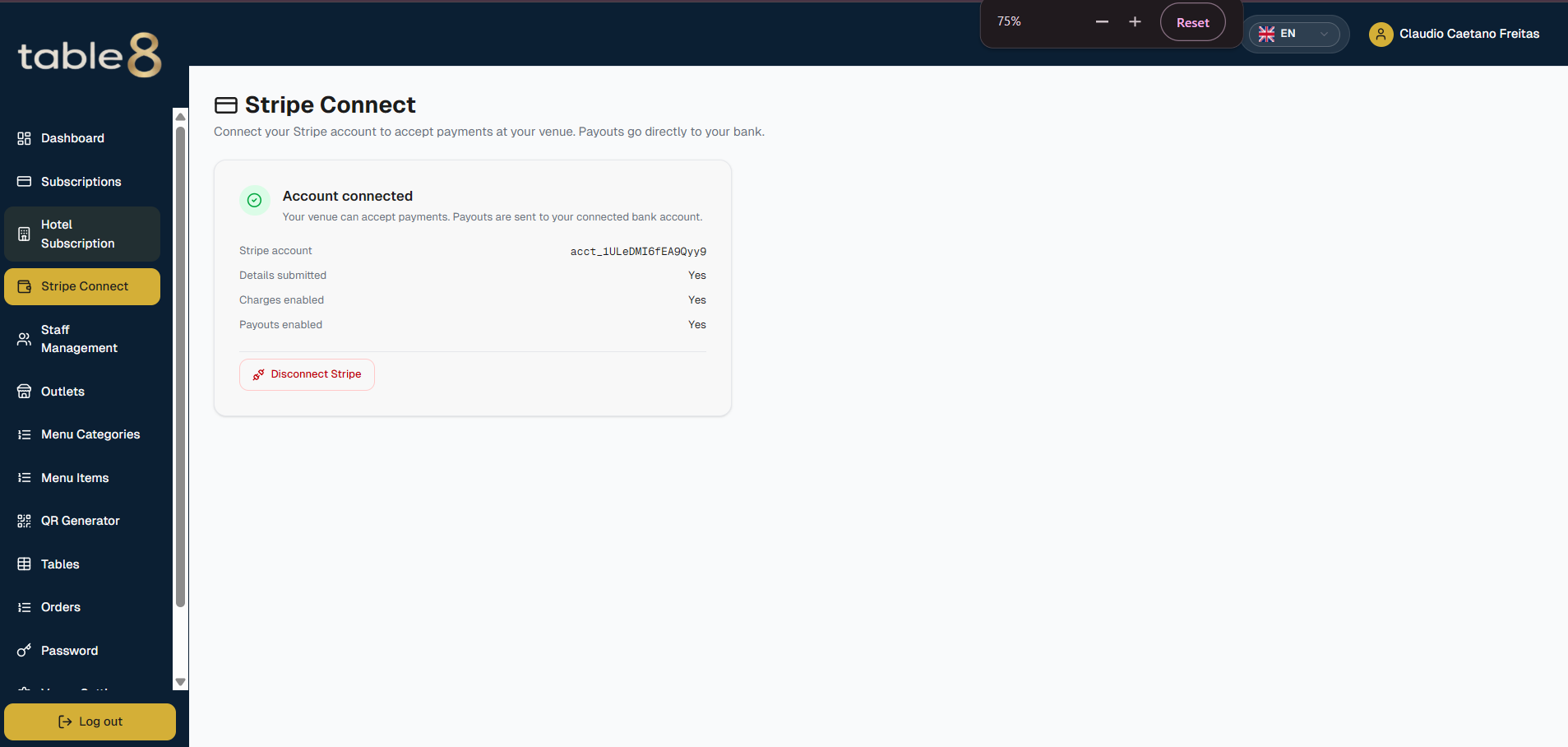
Your Table8 plan is billed separately. When a guest pays by card, that money needs a path to your bank. Open Stripe Connect as the owner to set this up.

  1. 1Click connect. Stripe opens a form for your business details and bank account.
  2. 2Finish the form until Stripe allows card payments (and payouts, when they are ready).
  3. 3If you left the form unfinished, use refresh to continue the same account.
  4. 4Disconnect only if you need to replace the account.
Card payments setup
Connect your account so guest card payments can reach you.
09

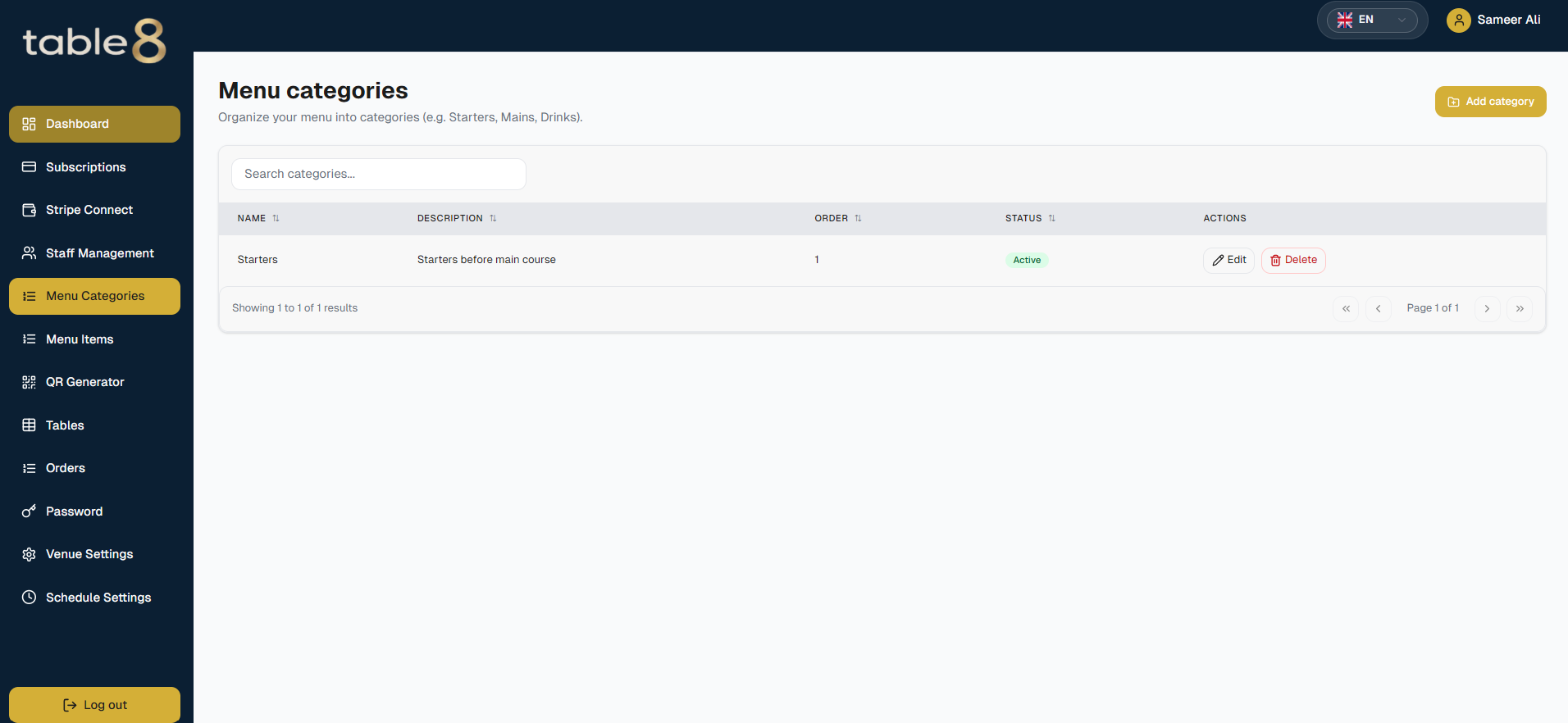
Menu categories

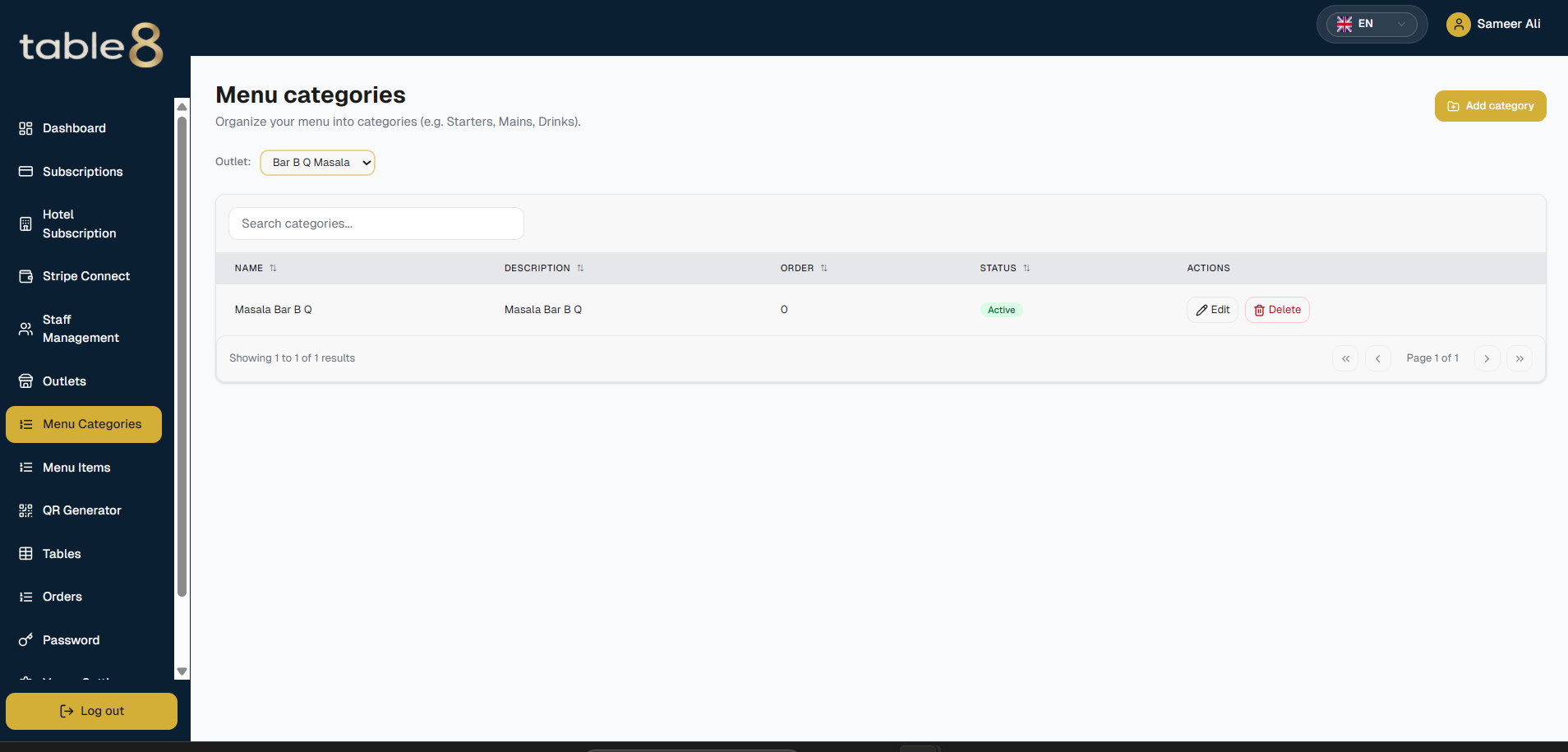
Categories are the sections on the guest menu, such as Starters, Mains, and Drinks. Open Menu Categories.

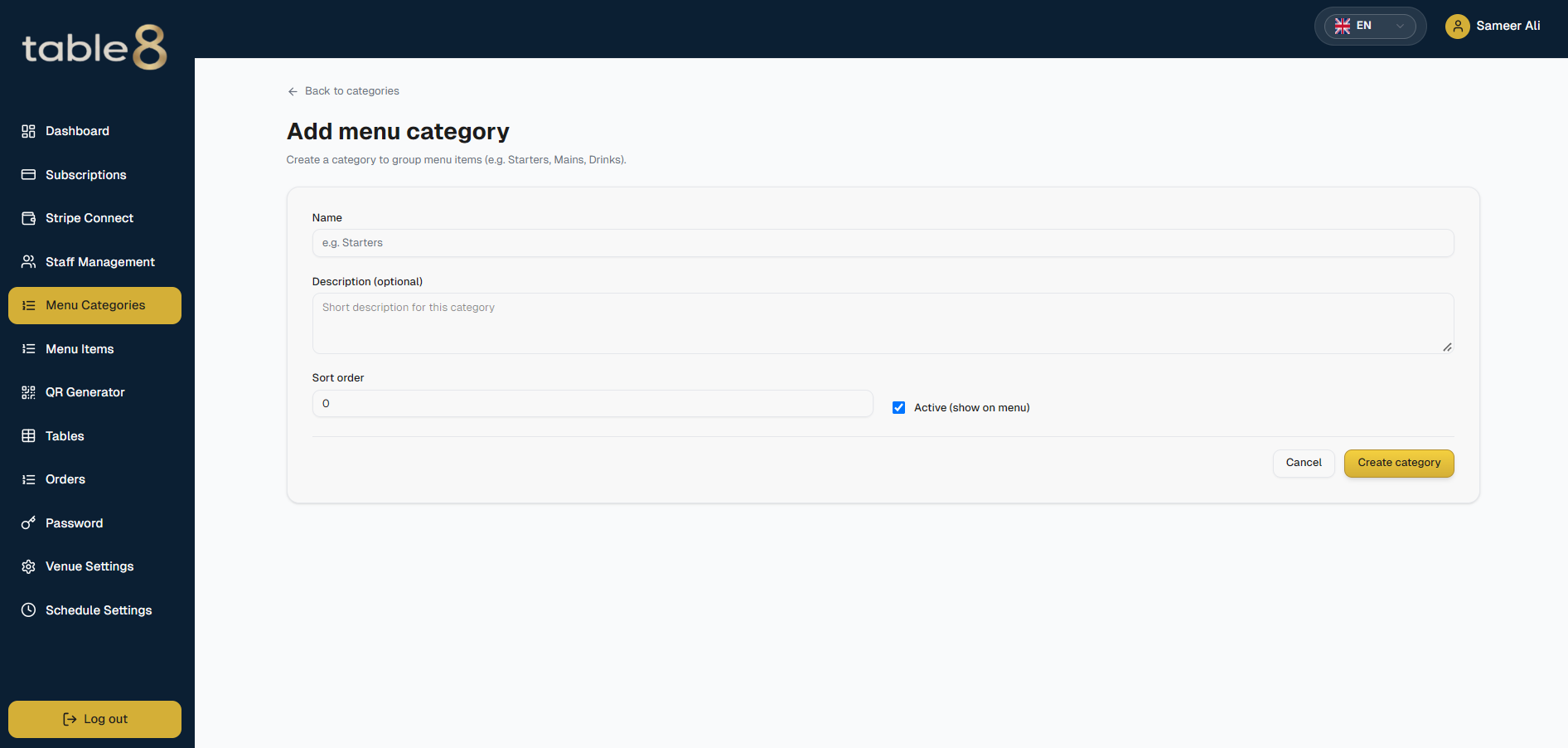
  1. 1Click add, or open Add category.
  2. 2A name is required. A description is optional.
  3. 3Sort order controls the order on the menu (0 comes first).
  4. 4Turn active off to hide the category and its dishes from guests without deleting them.
  5. 5Hotels: assign the category to an outlet. Each outlet has its own menu.
Categories list
Your categories in the dashboard.
Add category form
Add a category.

Edit a category from the list to rename it, change the order, or hide it. Do not delete a category that still has dishes you need — move those dishes first.

11

Hotels & outlets

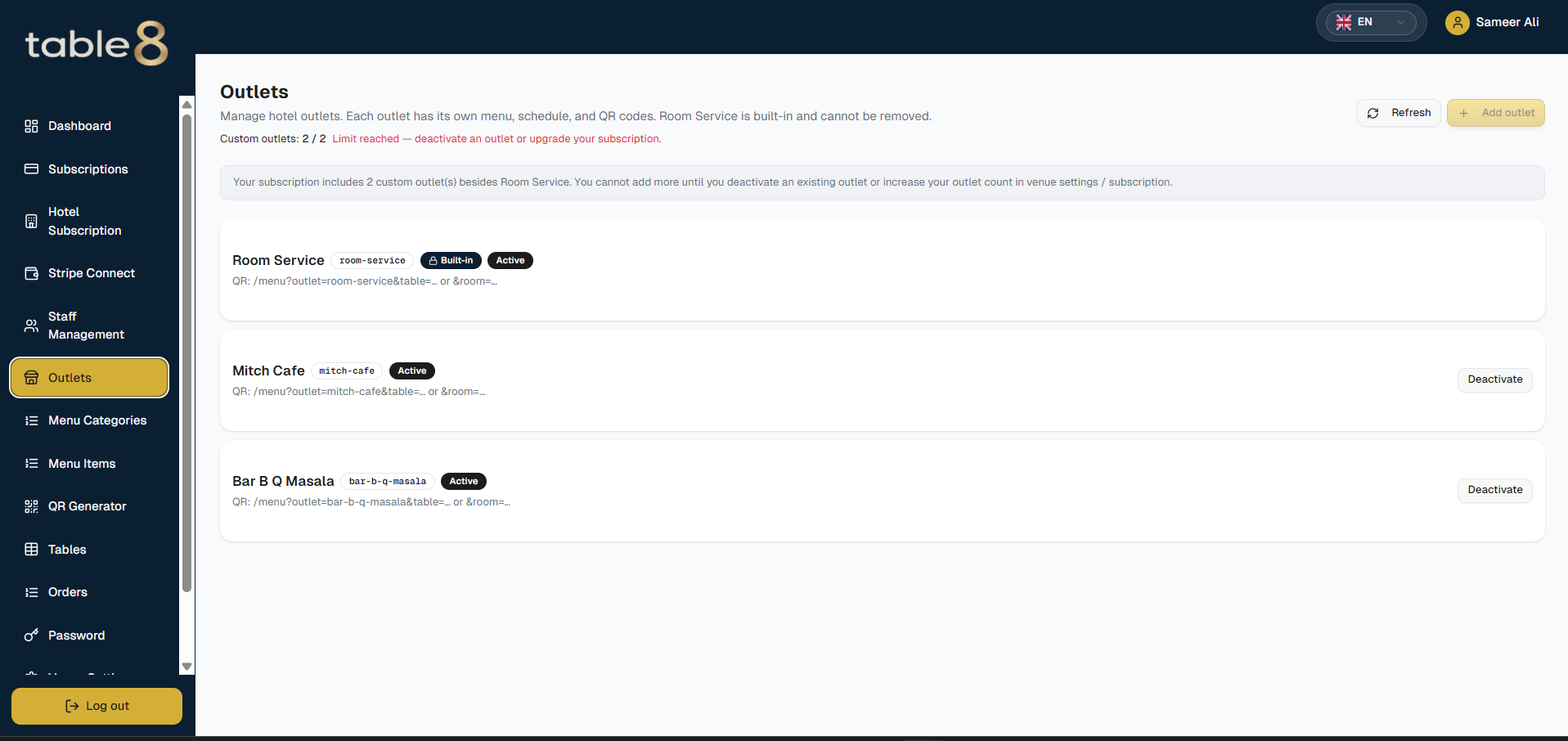
A hotel is not one menu. Each outlet is a place that serves food or drink — restaurant, bar, pool bar, room service — with its own menu. Open Outlets.

  • Common types include restaurant, bar, pool bar, and room service (when the hotel has that amenity).
  • You can add extra outlets up to the number included in your hotel plan.
  • Turn an outlet off to hide it without deleting past orders.
  • Room service appears for hotels only. A restaurant QR code will never show it.
Outlets list
Hotel outlets and how many you can add.

A menu for each outlet

  1. 1Create categories for each outlet (Restaurant Starters is not the same as Bar Snacks).
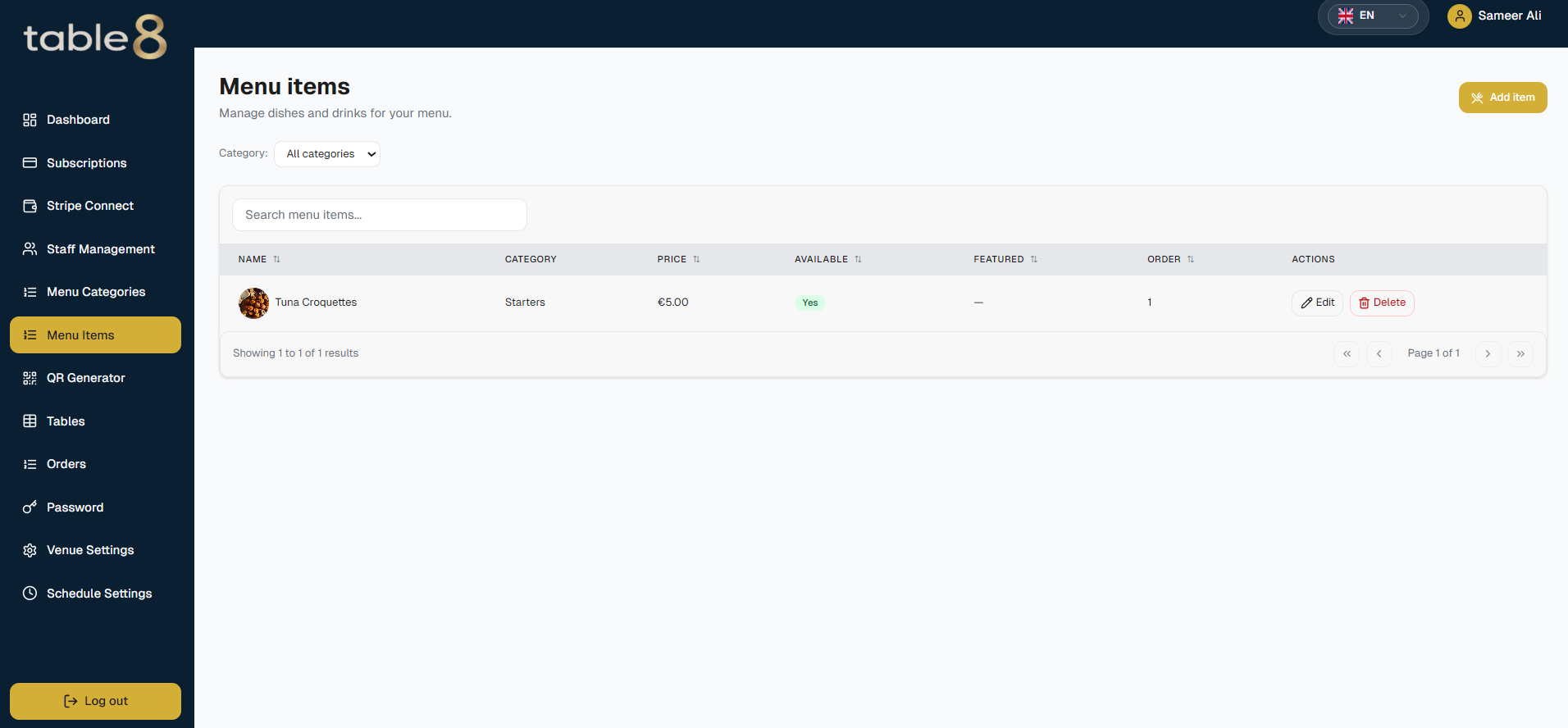
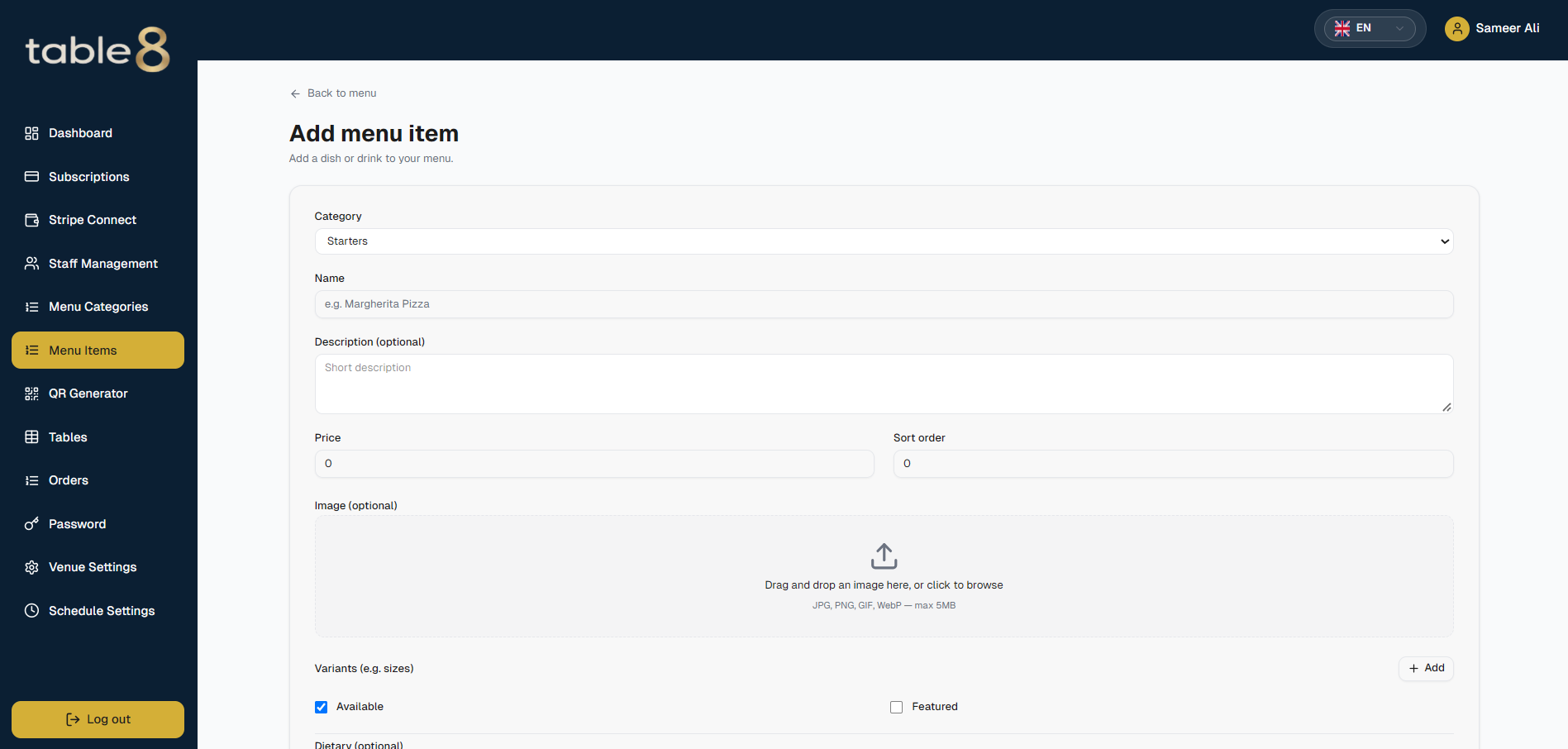
  2. 2Add dishes into those categories. The dish follows the category’s outlet.
  3. 3Print QR codes for that outlet so the guest already sees the right menu.
Category assigned to an outlet
A category tied to one hotel outlet.
12

Tables & rooms

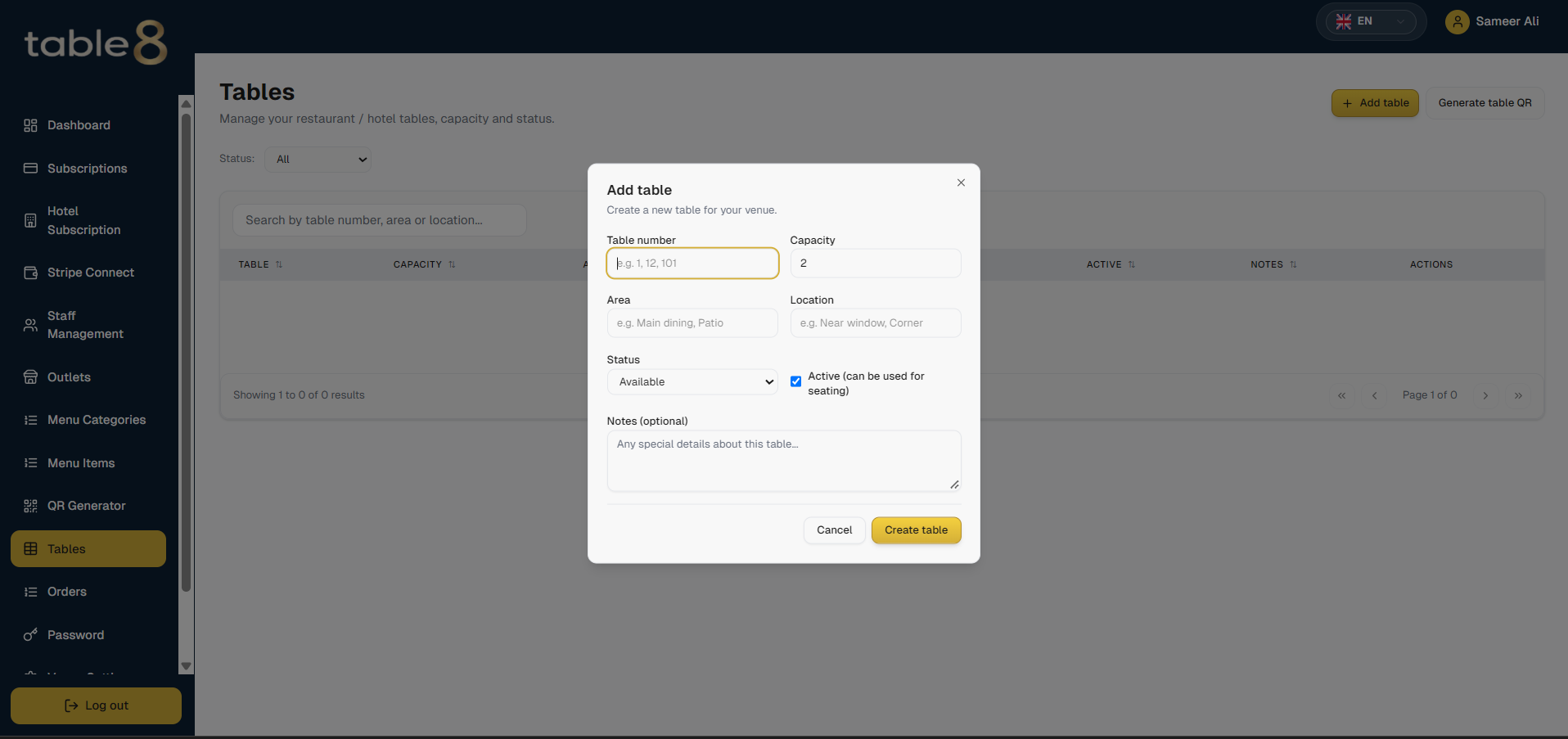
Open Tables. Each row is a physical table. Hotels also print room QR codes from the generator. Staff update live status from Staff → Tables.

StatusGuest QRMeaning
AvailableOpens the menuReady to seat.
OccupiedOpens the menuGuests are already ordering.
ReservedBlockedHeld for a booking; a walk-up guest cannot order from this code.
CleaningUsually opensBeing turned.
Out of serviceBlockedBroken or closed; the code will not take an order.
  1. 1Add the table number, how many seats, an optional area, and notes.
  2. 2Keep the number the same as the printed code (Table 12 on the stand = table 12 here).
  3. 3When you search orders, “Room 1” means only room 1 — not 12 or 102.
Tables admin list
Tables and their statuses.
13

QR codes

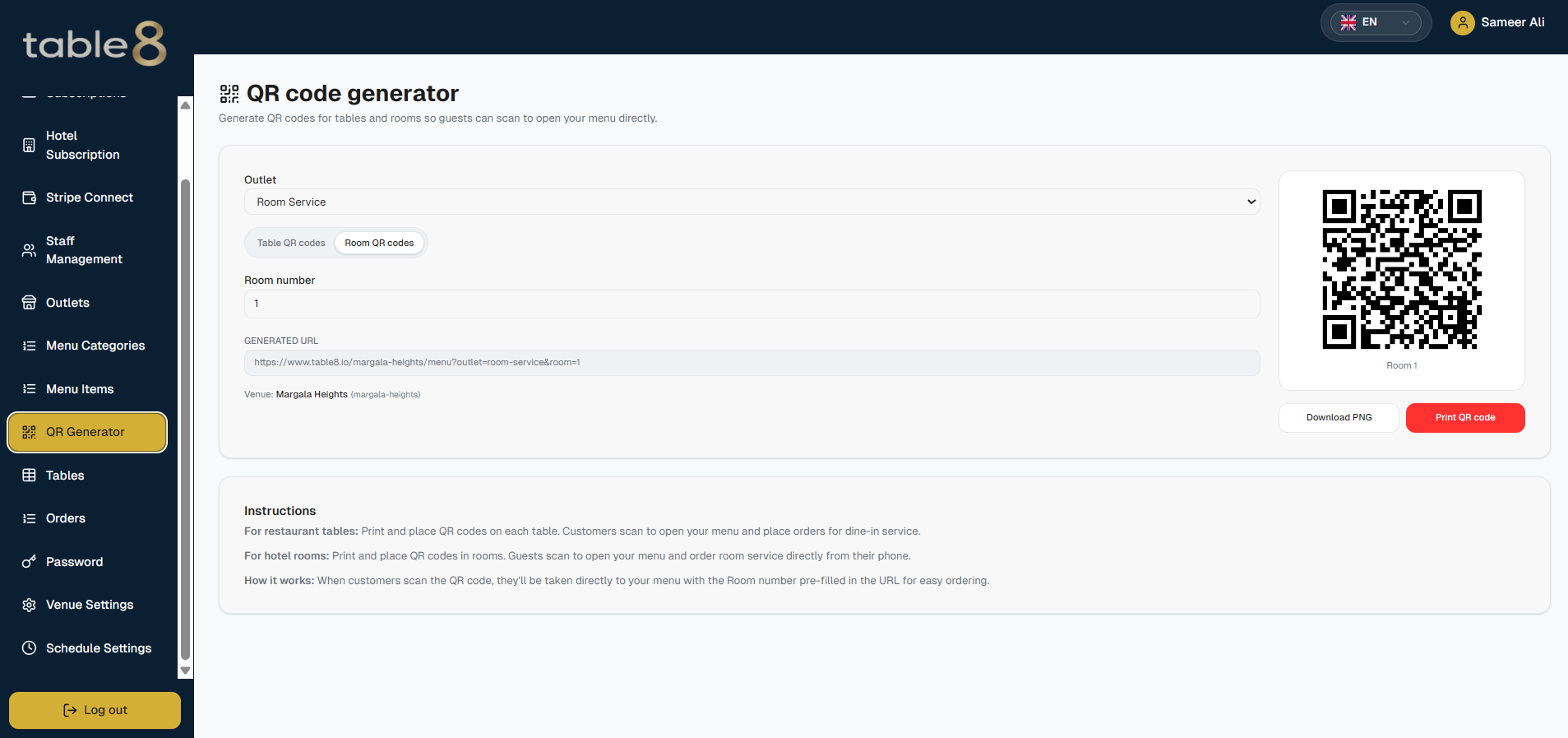
Open QR Generator. Each code opens your public menu with that table or room already selected.

  1. 1Make sure your menu web address is the one you want to keep.
  2. 2Restaurants: choose table, enter the table number, and generate.
  3. 3Hotels: pick the outlet, then table or room. Room service codes use room numbers.
  4. 4Download or print. Put the same number on the stand as in Tables.
QR generator
QR generator: a printable table or room code.
14

How a guest orders

Walk this path yourself before service so you know what guests see.

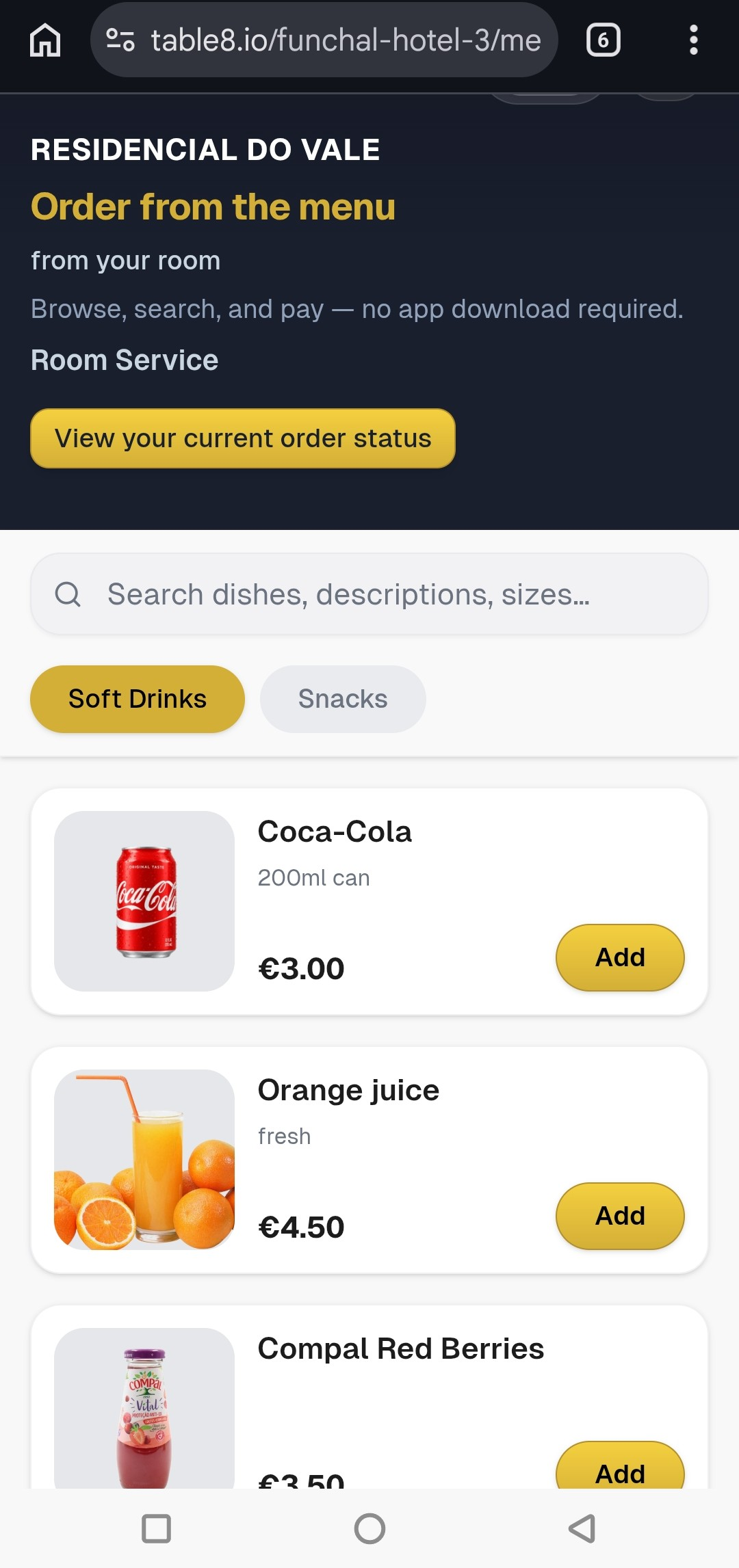
  1. 1Scan the table or room code. The phone opens your menu with that table or room already chosen.
  2. 2Menu. Your venue name at the top, a short description, then the outlet name (hotels). Categories across the menu; dishes with price, photo, and dietary marks.
  3. 3Add to cart. Pick a size if the dish has sizes. Confirm how many.
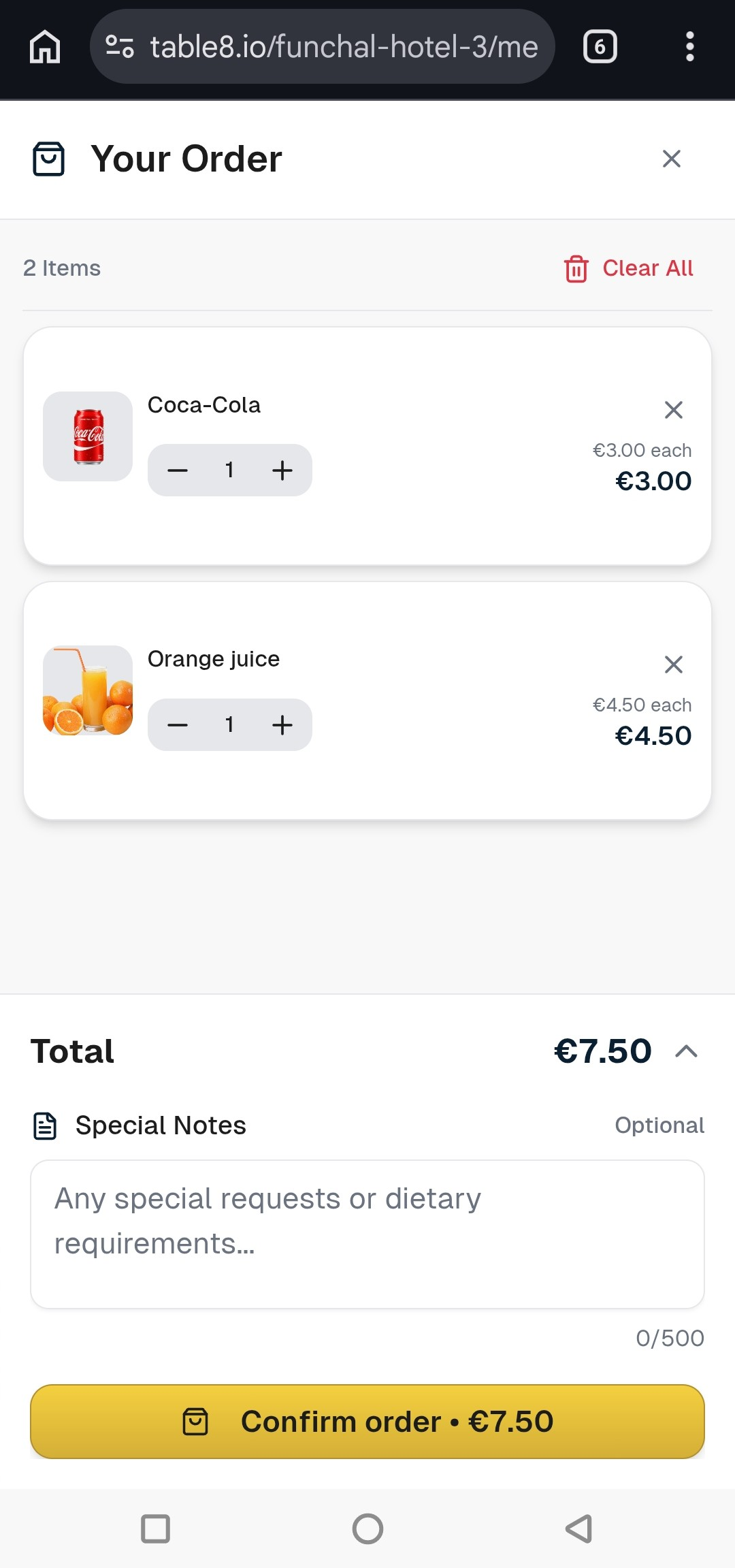
  4. 4Confirm order. Review the list, pick how to pay, then place the order. The next page is order status — there is no extra menu in between.
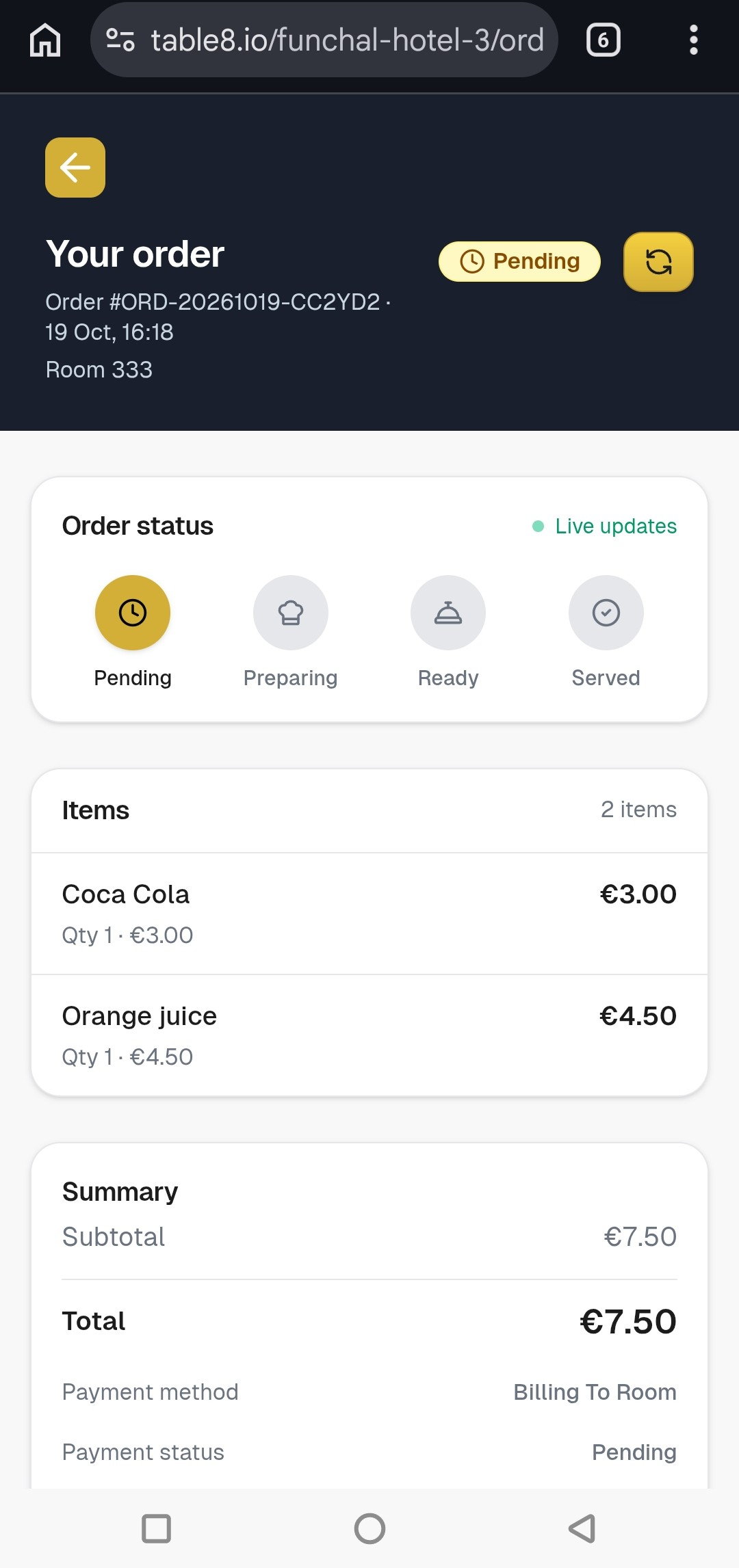
  5. 5Order status. The guest stays on the order page and sees live progress (sent, in the kitchen, ready, completed) without refreshing.
Public QR menu
Guest menu after scanning a table code.
Confirm order / payment
Guest confirms the order and chooses how to pay.
Guest order status
Guest order status after placing the order.

How guests can pay

MethodVenueNeeds
Pay onlineAllYour card-payments account connected, with charges allowed.
Pay at counterRestaurant / bar / café / pubStaff collect at the till.
Pay with cashRestaurant / bar / café / pubStaff collect cash.
Bill to roomHotelA valid room number on the QR code.
15

Staff accounts

Only the venue owner can open Staff Management. Create people from Add staff.

RoleTypical use
Venue adminHelp the owner with the menu, tables, QR codes, and orders. Cannot handle billing or create staff.
Staff (waiter)Take orders, manage tables, see orders and alerts.
Room serviceHotels: room orders, and bill to room.
KitchenThe kitchen screen and kitchen-related orders.
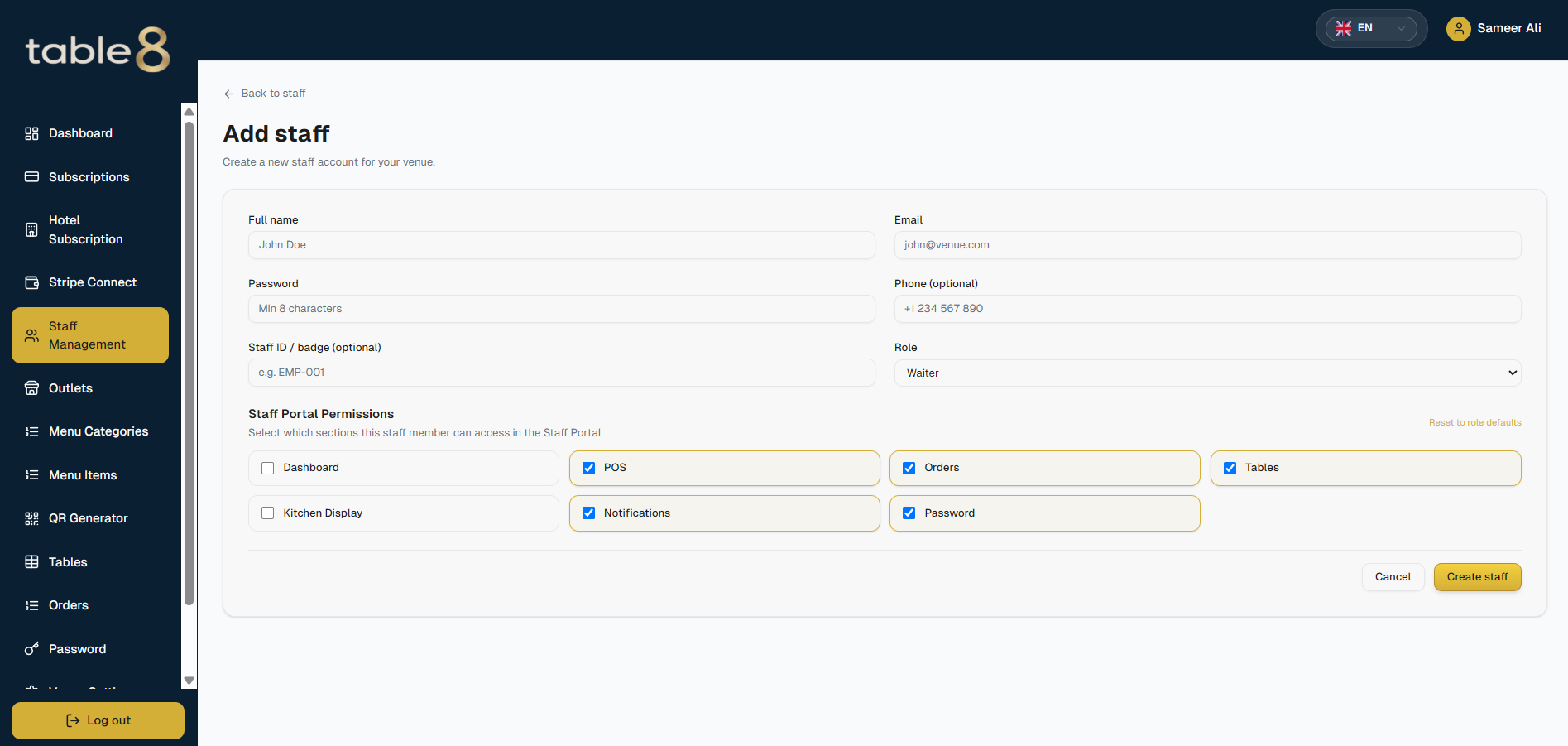
  1. 1Enter name, email, password (at least 8 characters), optional phone and staff ID.
  2. 2Pick the role. Access follows that role; you can tick extra areas if needed.
  3. 3Save. They sign in at Login and land on the staff tools or the kitchen screen.
Add staff form
Create a staff account and choose a role.
16

Your orders

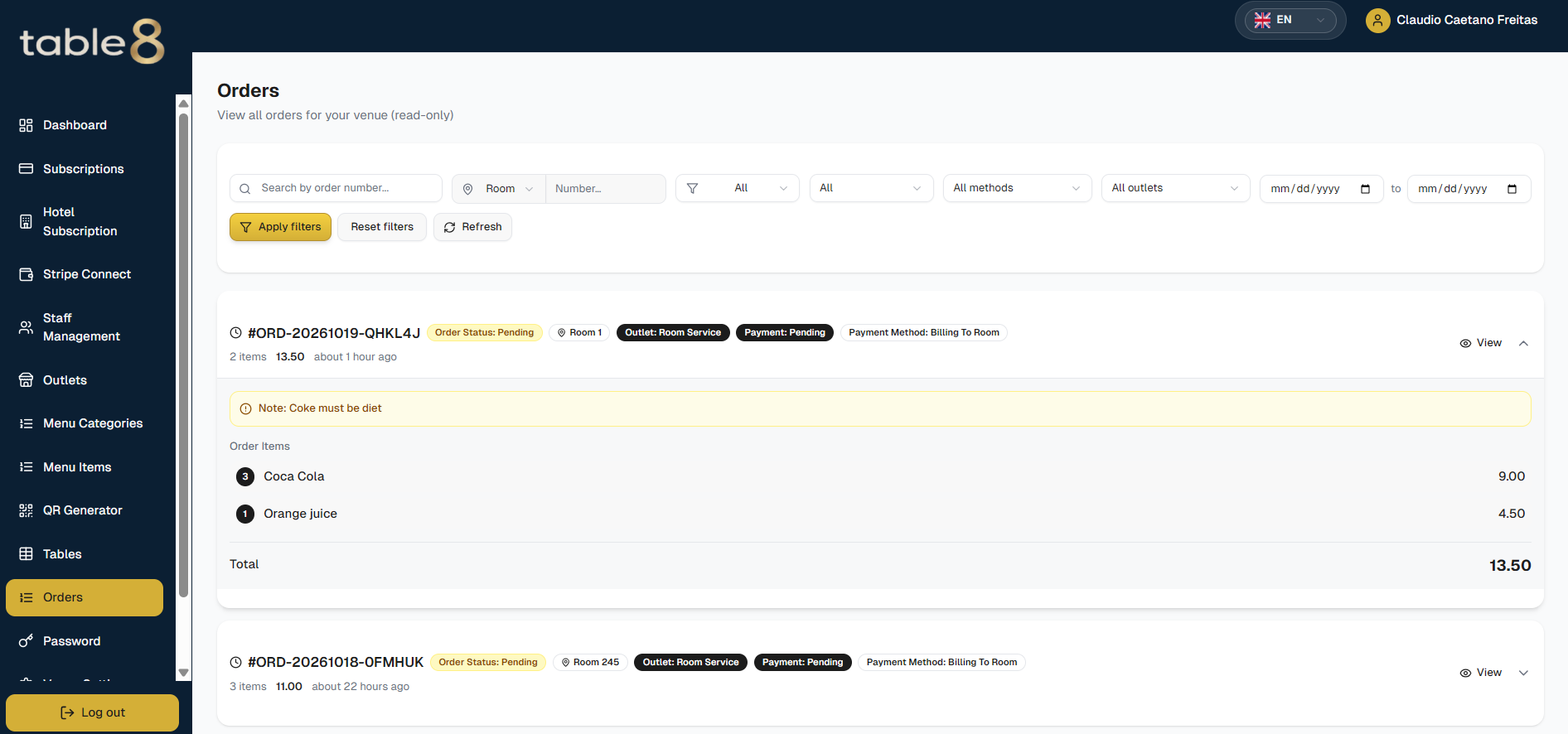
Owners and venue admins use Orders. Filter by status, payment method, and date. Search matches table or room name and order number. You can combine them (table plus number). “Room 1” is only room 1, not 12 or 102.

  1. 1Set filters, then Apply. Reset clears them.
  2. 2Open a row for the full ticket: dishes, payment, guest notes, and times.
  3. 3Status changes from the kitchen or staff show here as well.
Admin orders with filters
Orders: search and filters.
17

Staff sign in

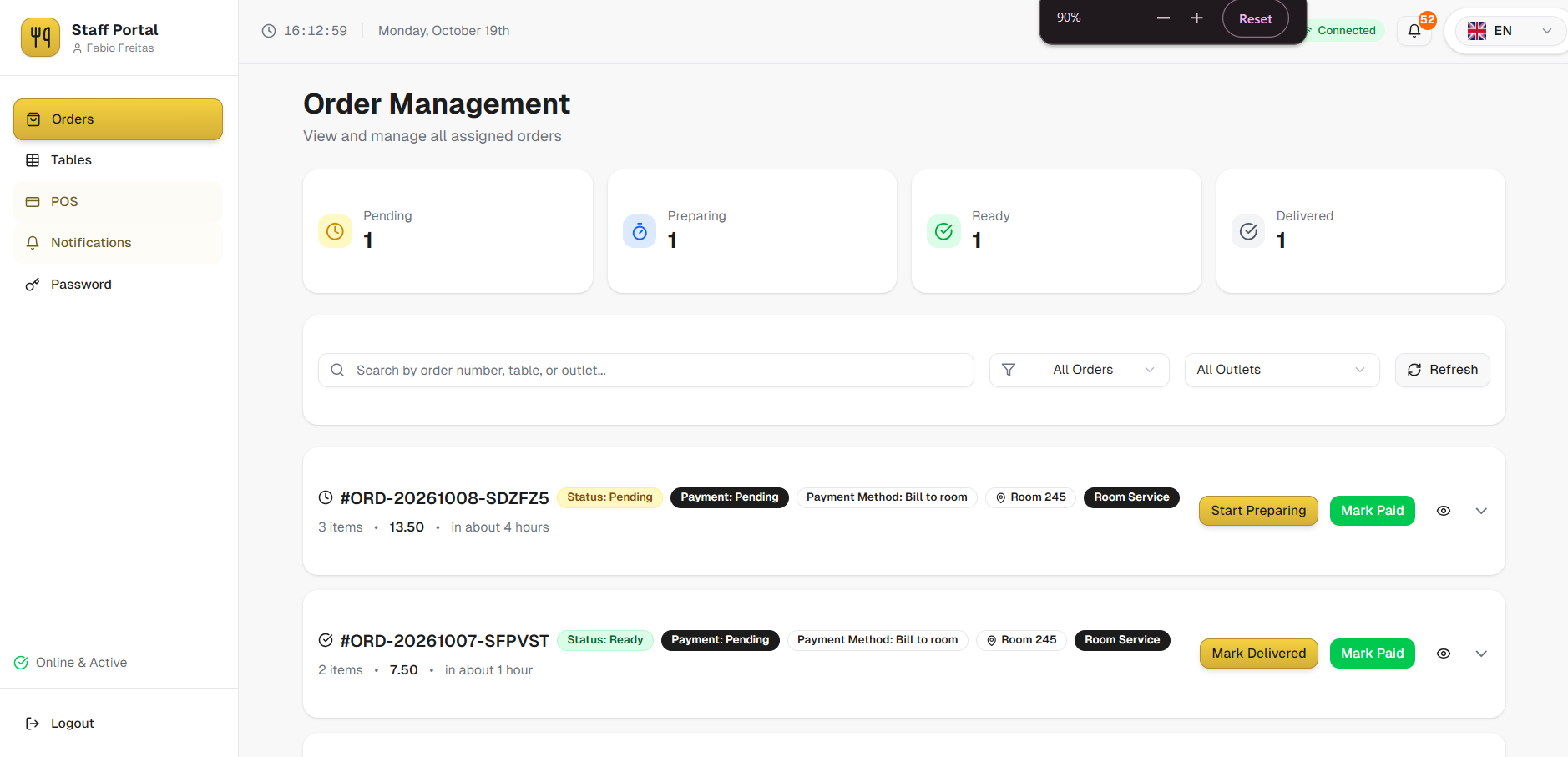
Waiters, room service, and kitchen use the same Login as the owner, with the account created in Staff Management. They land on staff tools or the kitchen screen — not the owner dashboard.
You work the floor

Open the staff dashboard: take orders, manage tables, see orders and alerts.

You work the kitchen

Open Kitchen. You need a kitchen login, and the kitchen screen must be turned on for the venue.

  1. 1Sign in with the email and password from the owner.
  2. 2Change the password at Staff → Password on your first shift if it was temporary.
  3. 3If you see a lock screen, the venue plan is not active. You cannot dismiss it — ask the owner to renew.
Staff dashboard after sign-in
Staff home after sign-in.
18

Take an order

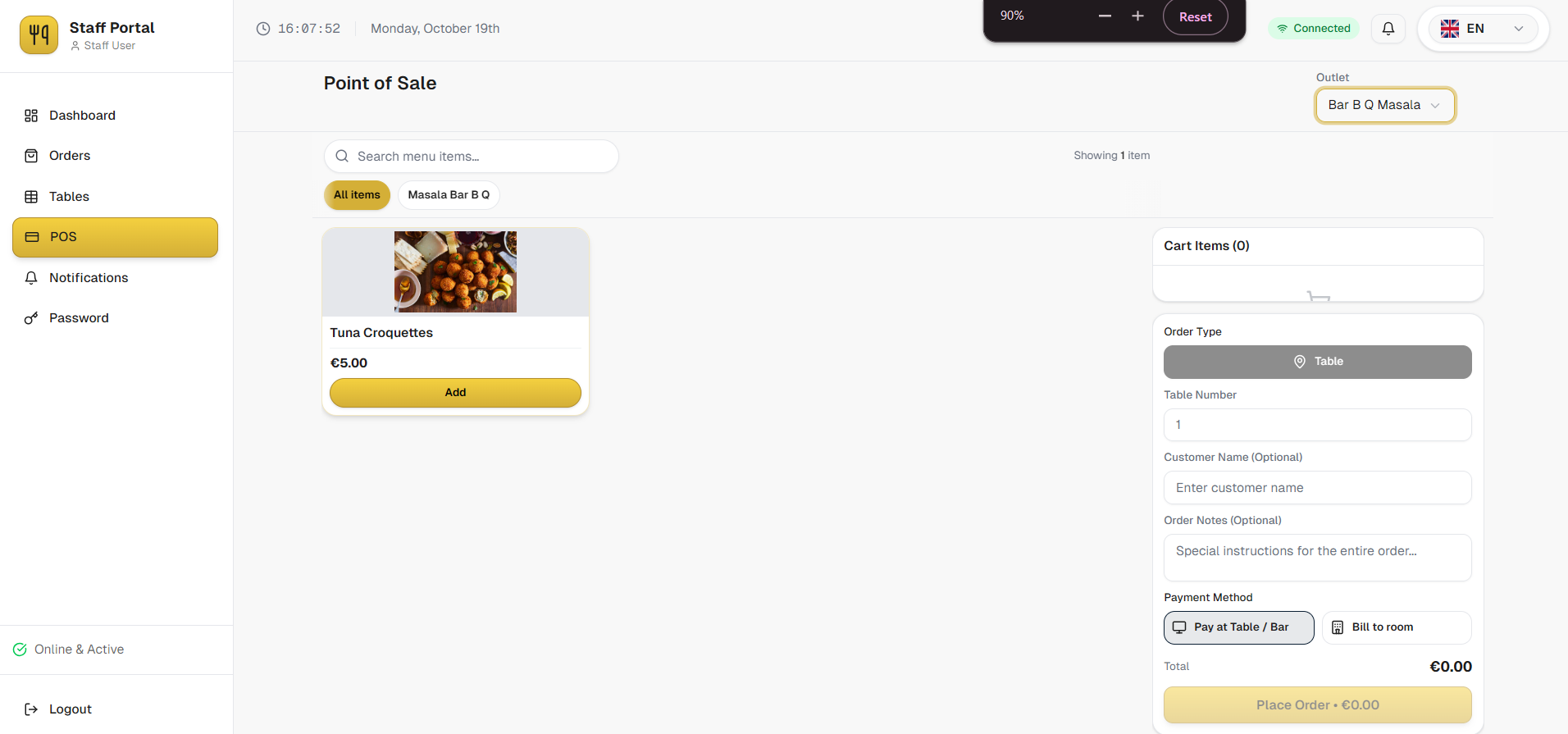
From the staff order screen waiters place orders without a guest scan. The layout is built for a tablet: menu on one side, ticket on the other.

  1. 1Select the table (or room, in a hotel / room service).
  2. 2Add dishes and sizes — the same menu guests see.
  3. 3Choose payment: pay at counter, pay with cash, or bill to room (hotel only).
  4. 4Send. Check that the ticket appears under Orders and on the kitchen screen if the kitchen is turned on.
Staff order screen
Take an order: menu and ticket side by side.
19

Table status

Open Staff → Tables. Status here controls whether a guest QR still works. Owners can also set status from Admin → Tables.

  • Available / occupied — guests can scan and order.
  • Reserved — the code is blocked until you release it.
  • Out of service — the code is blocked (broken table, closed section).
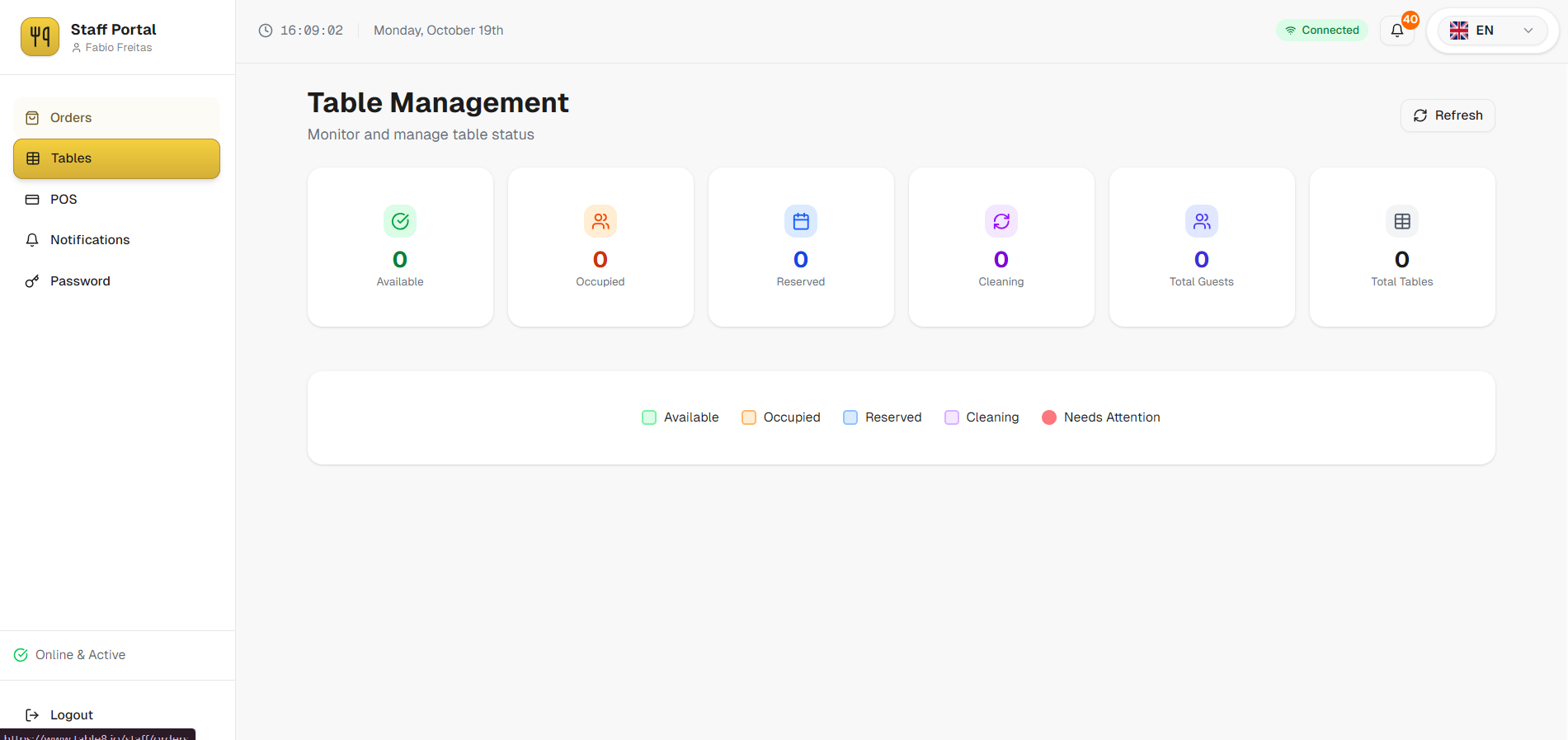
Staff tables
Table status on the floor app.
20

Kitchen screen

Keep Kitchen open on the pass. New tickets arrive as they are placed. Columns follow cooking status. Sound announces new work; mute if the pass is already loud, but do not close the tab.

  • The kitchen screen must be turned on for the venue, and you need a kitchen login.
  • Tap a ticket to move it through cooking. The guest order page updates at the same time.
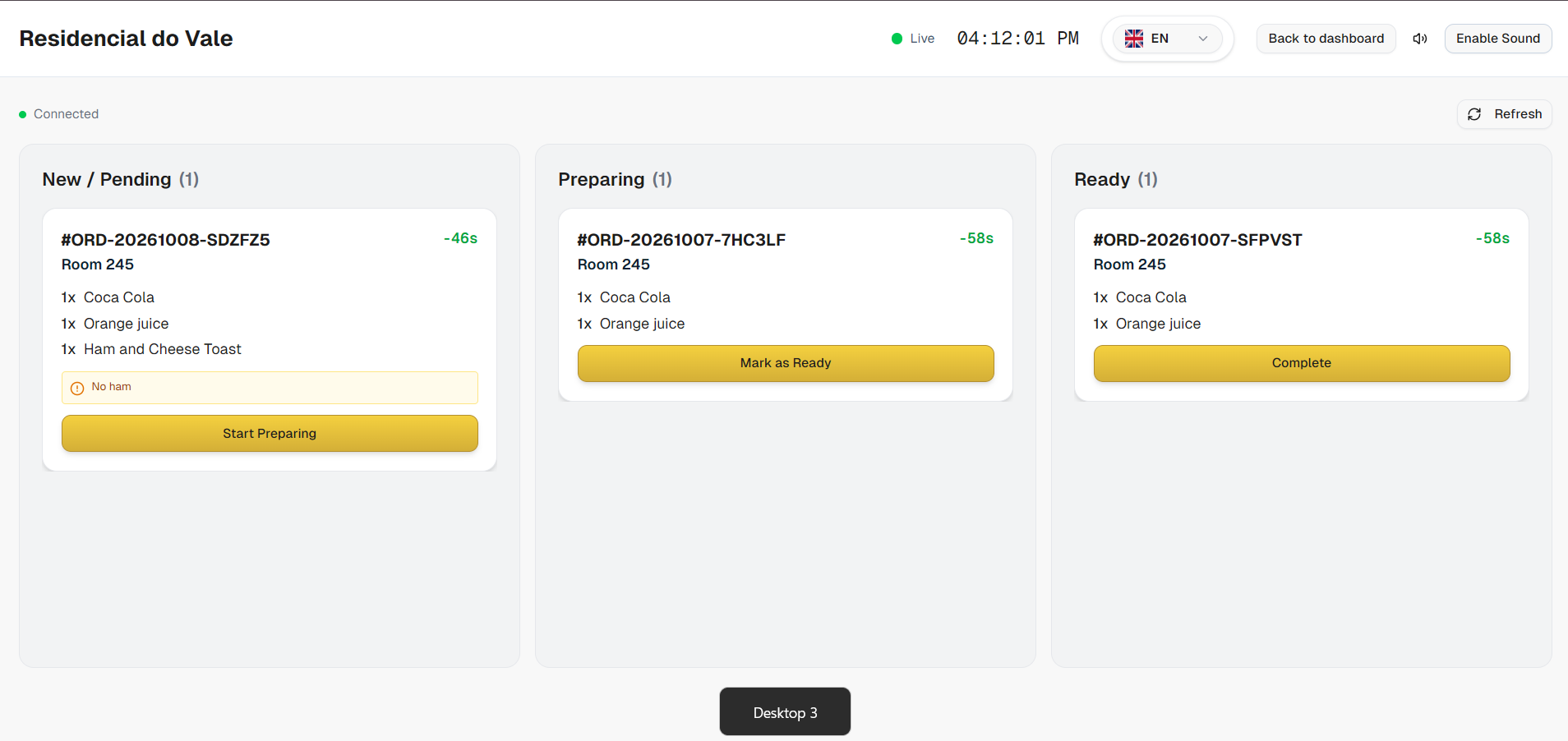
Kitchen screen
Kitchen screen: live tickets by status.
21

Orders & alerts

Staff → Orders is the list of the same tickets. Notifications flags new and updated orders while you are not on the kitchen screen.

Staff orders
Staff orders list.
22

Video guides

Short videos of the same steps as this guide. They will appear here as they are ready.

Videos in this series:

  1. 1Create your account and register a venue
  2. 2Set opening hours
  3. 3Subscribe to a plan
  4. 4Create menu categories
  5. 5Add menu items
  6. 6Hotel menus and outlets
  7. 7Generate and print QR codes
  8. 8How a guest places an order
  9. 9Create staff accounts
  10. 10Take an order and use the kitchen screen
  11. 11Receive card payments
23

Words & common problems

WordMeaning
Menu linkThe short web address for your public menu, such as table8.io/marina-grill/menu.
OutletA hotel service point (restaurant, bar, pool bar, room service) with its own menu.
QR menuThe guest phone page after scanning a table or room code.
Take an orderStaff tablet screen to place an order without a guest scan.
Kitchen screenLive ticket board on the pass. It must be turned on for the venue.
Stripe ConnectYour own Stripe account so Pay online can send money to you.
Bill to roomHotel charge posted to the guest’s room instead of a card at the table.
Lock screenThe screen that appears when the plan is not active.

If something fails

  • Menu closed: check Schedule for today’s hours.
  • QR blocked: the table is Reserved or Out of service — change it in Tables.
  • Pay online missing or failing: finish Stripe Connect until card payments are allowed.
  • Lock screen: the owner renews from Subscriptions (or Hotel Subscription).
  • Kitchen empty: confirm the kitchen screen is on, you signed in as kitchen, and new orders exist.
  • Order status not moving for the guest: they should stay on the order page. It updates on its own.